
Deep dive
One recipe.
Every step
in time.
BPM lists are the heart of Run2Beat. A BPM list isn’t a fixed playlist — it’s a saved recipe that decides the cadence you want to hold, how much music you want and where the songs come from. Run2Beat finds matching tracks, shuffles a selection, and times them so the beat sits at that cadence — helping your steps lock to the music as it pulls you along. This page is the long version of everything that recipe can do.
What a BPM list actually is
Think of a normal playlist as a fixed list of songs. A BPM list is the opposite: a set of rules. You describe the kind of music you want — “running at 175 steps per minute, drawn from my whole library, about 30 minutes of it” — and Run2Beat assembles a matching set for you. Change the rules and the list reshapes itself.
A recipe bundles six things together: an activity, a target BPM, a pitch tolerance, your multiplier settings, how much music you want, and where the songs come from. Together they decide which tracks Run2Beat picks — and how they sound while you move.
1. Activity — a sensible starting point
Every recipe starts with an activity, and each one pre-loads a recommended cadence so you’re never staring at a blank slider:
- Walk — around 110 BPM.
- Powerwalk — around 135 BPM.
- Running — around 175 BPM.
- Cycling — around 90 BPM.
Picking an activity sets the matching icon and a sensible target tempo. From there every value is yours to fine-tune — the activity is just a head start, not a lock.
2. Target BPM — the cadence you want to hold
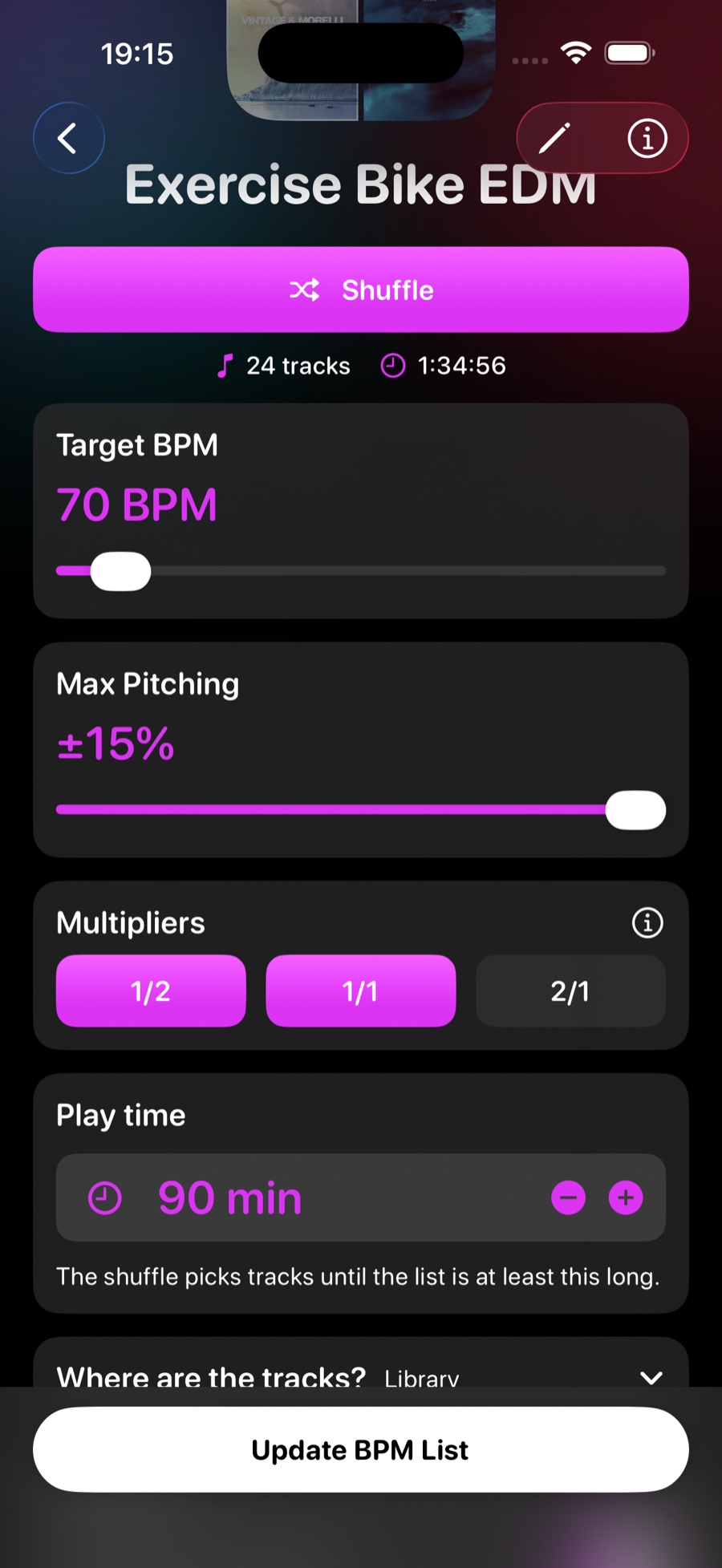
This is the single most important number in the recipe: the rhythm you want your feet to follow, in steps per minute. Many runners settle somewhere in the 170–180 range; a brisk power-walk often lands around 130. You can dial anything from 60 to 220 BPM.
Everything else in the recipe exists to serve this number — to find music that can sit at that cadence, and to time each track so the beat is steady enough for you to lock onto and hold.
3. Max pitching — how far a song may bend
Very few songs sit at exactly your target tempo. Max pitching is the tolerance that decides how much Run2Beat is allowed to digitally speed up or slow down a track so its beat matches the cadence you want to hold. It runs from 0 % up to 15 %, and a new list starts at a practical ±10 %.
The trade-off is simple and worth understanding:
- Small tolerance (under 5 %) — the tempo shift is usually imperceptible, vocals stay completely natural, but fewer songs in your library qualify.
- Larger tolerance — many more songs become usable, because a track only has to get within that percentage of your target. The cost is that bigger shifts start to make voices and instruments sound slightly unnatural.
Run2Beat shifts tempo without dropping the pitch into a chipmunk register — but physics still applies, so the wider you open the tolerance, the more a careful ear will notice.
4. Multipliers — how your feet land on the beat
Multipliers are the cleverest part of the recipe, and the one most worth understanding. They decide the relationship between your steps and the song’s beat, which is what lets a single cadence pull in music across a huge range of tempos. There are three, and you can switch on any combination:
1/1 — Normal time (one step on every beat)
The classic, total-sync cadence. One footfall per beat, your movement and the music’s pulse in complete harmony. With 1/1 enabled, Run2Beat looks for songs whose natural tempo already sits close to your target (within your pitch tolerance). Target 175 → it looks for songs around 175 BPM.
2/1 — Double time (two steps on every beat)
Here you take two steps for every single beat of the music. That means Run2Beat can use songs at roughly half your target tempo — perfect for heavy, slower grooves (think hip-hop or reggaeton) that suddenly give you tremendous drive. Target 160 → you can run to beat-heavy songs at around 80 BPM.
1/2 — Half time (one step every two beats)
The mirror image: one footfall for every two beats, so Run2Beat can use songs at roughly double your target tempo. This is how you run to extremely fast, intense music (drum & bass, for example) while still moving in a powerful, controlled rhythm. Target 175 → songs pumping at around 350 BPM become usable.
Throughout, one principle holds: songs always play near their natural tempo — you choose which beat relationship keeps your steps in time. A 2/1 match isn’t slowed to a crawl; it plays normally while you simply take two steps per beat.
The reason to enable more than one multiplier is reach. With 1/1, 2/1 and 1/2 all on, the algorithm can sweep your entire library and work out, song by song, exactly which relationship lets your feet stay locked to the music — whether the track is naturally fast, slow, or right on the money. By default a new recipe runs with 1/1 and 2/1 enabled.
How matching works under the hood
For the curious, here is the exact rule Run2Beat applies to every candidate track. For each multiplier you’ve enabled, it computes the song’s effective tempo and compares it to your target:
- 1/1 compares the song’s own BPM to your target.
- 2/1 compares twice the song’s BPM to your target (so a 80 BPM song reads as 160).
- 1/2 compares half the song’s BPM to your target (so a 350 BPM song reads as 175).
The tempo shift for a chosen frame is pitch% = (targetBPM / (trackBPM × multiplier) − 1) × 100. A song qualifies if at least one enabled frame lands within your max-pitching tolerance. When several multipliers would all work, Run2Beat keeps the closest match — the smallest absolute shift — and remembers that per-track amount so the iPhone and the Apple Watch play identically.
After you change the list’s target BPM and choose to keep the current songs, tracks that no longer fit inside Max pitching stay in the selection and still play at the new target (same formula, tolerance ignored). Those rows show in red in the detail editor with a warning; Watch sync still pre-times them to the new cadence.
5. How much music — play time
A recipe also decides how long the list should run. You set a target play time in 15-minute increments (15 min up to 5 hours, default 30 min). When you shuffle, Run2Beat keeps adding matching tracks until the total reaches that duration, so the result is never shorter than you asked for when enough matches exist — it may run slightly over to avoid cutting a song short.
There is no separate “number of tracks” mode: length is always driven by play time, which is what you actually care about on a run. Replace or remove songs later and Run2Beat tops the list back up so it still meets your target duration — and a replace never offers a song that is already in the list.
6. Source — where the songs come from
By default a recipe draws from your whole Library — every imported track is a candidate. Alternatively you can narrow the pool to one or more of your playlists, which is handy when you want a BPM list built only from, say, your “90s Indie” or “Metal” collection.
A couple of sensible rules keep this tidy: choosing playlists automatically unchecks Library, and unchecking the last remaining playlist falls back to Library. If a source playlist later changes or is deleted, the list quietly reverts to the library and is flagged as changed so your Apple Watch knows to re-sync.
7. Shuffle — drawing the actual selection
Once the recipe knows which songs could match, you tap Shuffle to draw the ones that actually land in the list. Run2Beat randomly picks from the eligible pool until your play-time target is met. Don’t love this draw? Shuffle again for a completely fresh random set — same recipe, different songs.
The selection is concrete and saved with the list, so playback is always the songs you last shuffled in. One thing worth remembering: after re-shuffling, save the list so the new selection is also what syncs to your Apple Watch.
Only trustworthy tempos get picked
A BPM list is only as good as the BPM data behind it, so Run2Beat is careful about what it’s willing to shuffle in. By default, auto-detected tracks whose tempo the analyser wasn’t confident about are excluded from the candidate pool before the shuffle even runs — a single wrong BPM can derail an entire run. The track-matching summary tells you plainly when this happens (“3 with uncertain BPM excluded”).
Tempos you’ve set or corrected yourself are always trusted and always eligible — you’ve explicitly vouched for them. (You can read the full story of how tempo is measured, and what “low confidence” means, on the BPM analysis page.)
Playback — timed so you can lock to the beat
Press play on a BPM list and Run2Beat always shuffles. As each track comes up it is gently timed to your target cadence — by exactly the per-track amount the recipe worked out — so a 168 BPM song and a 182 BPM song both present a steady beat at, say, 175. Voices and instruments keep sounding natural; your steps lock to the music, and the rhythm pulls you along so you can hold the pace.
The now-playing screen even pulses in time with the target tempo, so the whole app breathes at the cadence you are aiming for.
Warm-up — ease into the cadence you want
A run rarely starts at full pace, so a BPM list can begin with an optional warm-up: the first few songs play at a gentler tempo before the list ramps up to your target BPM. You set two things — how many songs warm you up, and the warm-up tempo itself. The only rule is that the warm-up tempo has to sit below your target (strictly lower by at least 1 BPM; floor 60); a 175 BPM list can warm up at 150, or just at 170 for the lightest of eases.
Warm-up remembers whether it is on, how many lead songs to use, and the warm-up tempo (if you leave that unset it defaults to about 20 BPM below target). The warm-up set is deterministic: the same songs lead every session, identical on iPhone and Watch, and self-healing when you swap a warm-up row out — the next eligible song is promoted automatically. Rows show a purple warm-up chip in the detail editor; list cards show the same icon when warm-up is on.
Tempo math keeps each track in its chosen beat relationship and applies a constant slowdown on top, so warm-up simply plays the same rendering a bit slower — no multiplier re-selection. Each warm-up song plays once as the intro and does not replay later at target tempo.
Playback always puts warm-up tracks first (shuffled among themselves) at the lowered tempo, then the remainder shuffled at target, and keeps that order so auto-advance cannot reshuffle warm-up away. While a warm-up song plays, Now Playing shows the warm-up badge and the actual warm-up tempo — not the list target — so the pulse matches the cadence your feet should follow right now. Settings travel with AirDrop and full-library backup; they are part of what the Watch sync fingerprints, so toggling warm-up reliably rebuilds the timed files on the wrist.
Swap candidates — songs you keep skipping
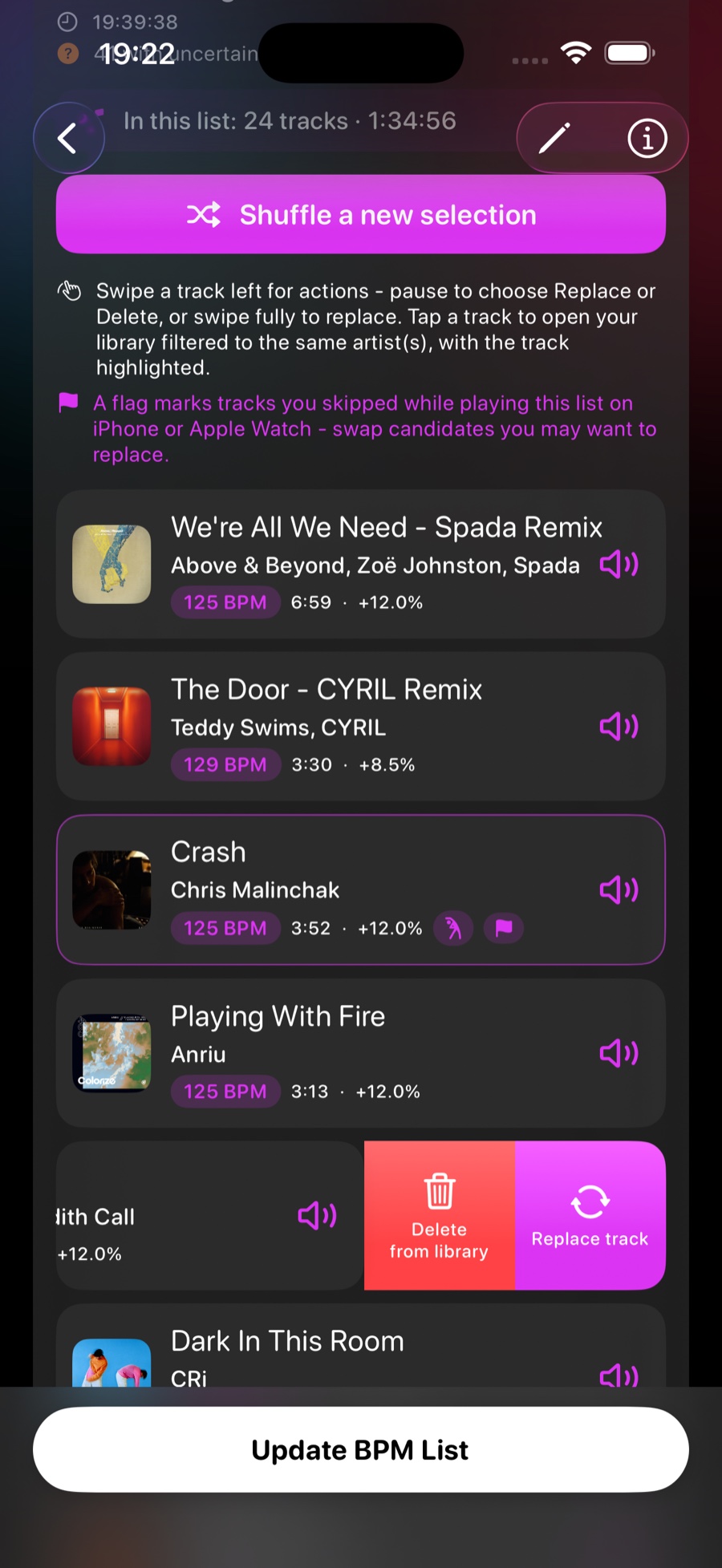
Not every match is a keeper at your target tempo. When you deliberately skip a track while a BPM list is playing — on iPhone or Apple Watch — Run2Beat flags it as a swap candidate for that list: a song you didn’t enjoy at this cadence, and an obvious candidate to replace.
Only a deliberate forward skip counts (on-screen next, AirPods / Control Centre / CarPlay / remote next). Natural end-of-track advances, crossfades and auto-skips over a missing file never flag anything. The flag is per list: the same song can be a candidate in one recipe and untouched in another. Duplicating or AirDropping a list starts with an empty flag set.
Flags show up in the detail view (compact flag pill + thin purple border) and on the list card while any remain. Replace / delete drops the flag; replacement draws only from matches not already in the list by identity. Clear from the menu or swipe, or save the list after a warning that saving resets candidates. Flagged songs are always a strict subset of the current selection.
Flags sync on a separate two-way channel — deliberately not inside the main list-content payload, so they cannot bloat convergence or block a sync. Watch skips are queued for guaranteed delivery and retried across launches; the phone applies them once per event. Whenever the phone inserts or clears flags it pushes an authoritative per-list snapshot to the watch, which overwrites its local copy and drops stale pending events for that list. Content re-sync never wipes wrist-side flags the listener just made.
On your Apple Watch
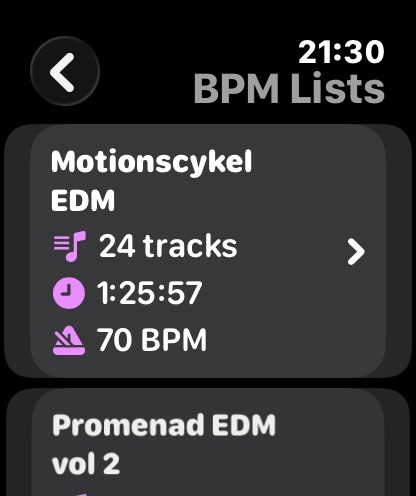
BPM lists come with you when you leave the phone behind. The key difference is when the tempo work happens: the Watch cannot run the same live tempo adjustment as the iPhone, so Run2Beat times each song to your target cadence up front during sync and transfers the finished, HE-AAC file. No live pitching, no battery-hungry processing on the wrist — just the right tempo already baked in, so your steps can lock to the beat with the phone at home.
Warm-up songs need only one file each, rendered at the warm-up tempo instead of the target (a config change rebuilds that file). Assignments mark which songs are warm-up for ordering: the watch plays warm-up items first, then the rest. Sync still counts one file per track — no extra convergence cost. (More on transport on the Apple Watch sync page.)
Editing a saved list
Change the target BPM on a saved list and Run2Beat asks whether to reshuffle or keep your current songs. Keep them, and every track is re-timed to the new cadence so you can still lock your steps to the beat; songs that would need more pitch than Max pitching normally allows stay in the list, shown in red with a warning, and still play at the new target on both iPhone and Apple Watch. Change Max pitching, multipliers or the source and the list updates in place — a fresh shuffle is how you draw a clean selection again. Nothing sticks until you tap Update BPM list.
Keeping a list honest after re-analysis
Tempos can change — you might re-analyse a track or correct it by hand. When that happens, Run2Beat walks every BPM list and removes any pinned track whose new tempo no longer fits the recipe. A “175 BPM list” can never silently end up holding a track that drifted to 163. The list always reflects what its recipe promises.
Managing your lists
You can create as many BPM lists as you like and give each one a name. Organise them into folders the same way you already can with standard playlists — create and rename groups, collapse sections, and move a list into a folder from its menu. Folders are an iPhone layout aid; Apple Watch and CarPlay stay a flat set of lists.
Recipes and folders are stored as local preferences on the iPhone (not in the same store as your music library). Groups share that pattern: optional manual order, collapse state, and which folder each list belongs to (ungrouped lists appear under Other). The list UI stays flat and alphabetical until the first folder exists, then switches to Groups + “Other BPM lists”. Deleting a group can remove only the folder or the folder and its recipes; music files always stay in the library. Orphaned folder membership is cleaned up on the phone only.
Long-press a list to shuffle-play it instantly, duplicate it as a starting point for a variation, copy its songs into a regular playlist, rename it, send the full recipe (including warm-up) via AirDrop, or delete it. When a list has swap candidates, the same menu and swipe actions also let you clear those flags without opening the detail view. Deleting a BPM list only removes the recipe — every track stays safely in your library.
The short version
A BPM list is a saved recipe: activity, the cadence you want to hold, how far songs may bend, which beat relationships to use, how long to play, and where candidates come from. Shuffle materialises a concrete selection; warm-up slows a deterministic leading set; skips flag swap candidates on a two-way Watch channel; folders organise the phone UI. iPhone times songs live; Watch plays pre-timed files — either way, the beat is steady so your steps can lock to the music.
→ Back to the overview